

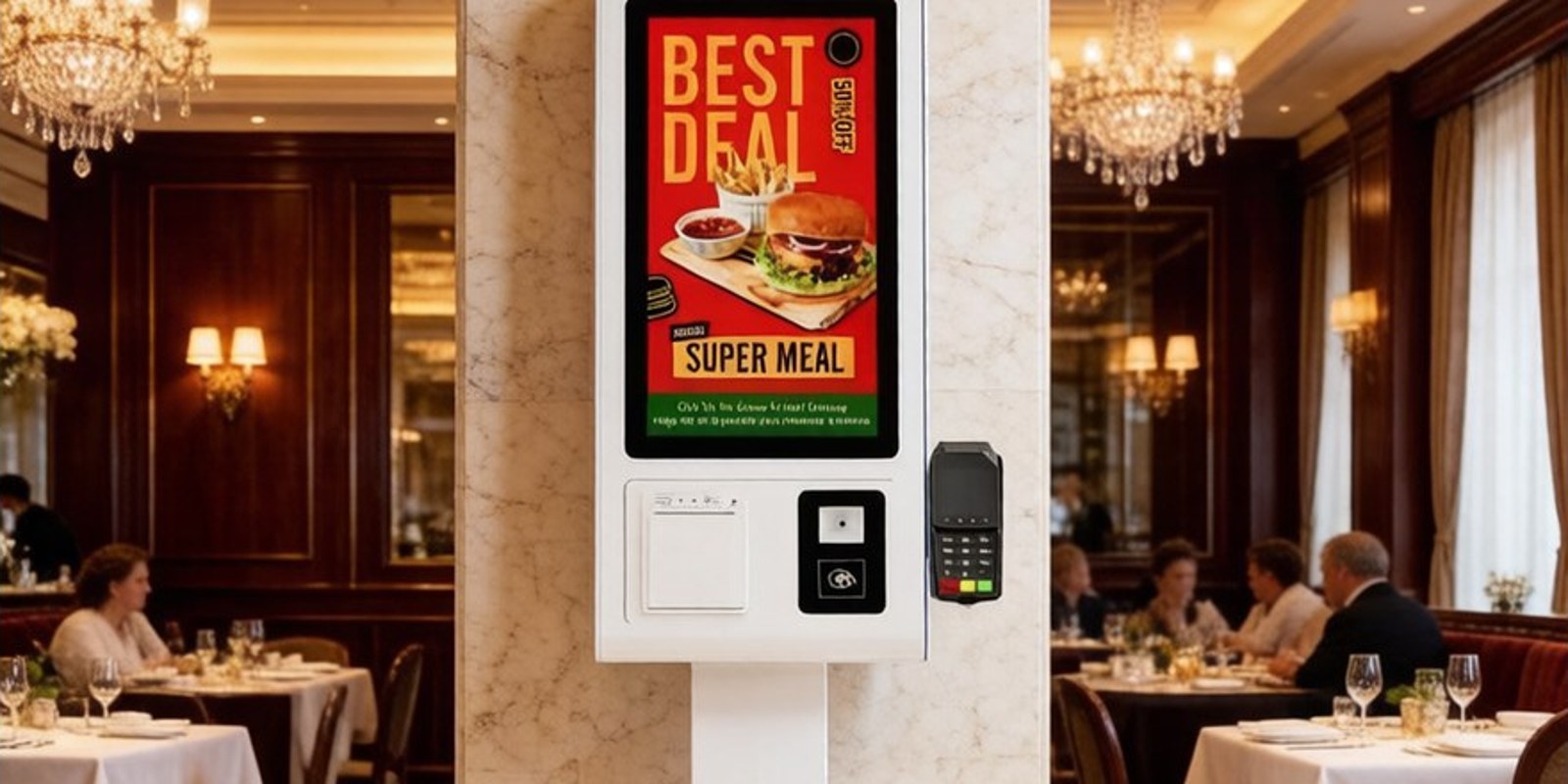

Self-order kiosks used to be something you only saw at big fast-food chains. Today they show up in cafes, delis, bakeries, food halls, convenience stores and even retail counters. The idea is simple: let customers browse, choose and pay on a touch screen, so your staff can spend their time making orders instead of typing them in.
A kiosk is not the right fit for every business, though. Here is how we think about whether one makes sense for you, and what to look for if it does.
When a kiosk makes sense
- You have a line at peak times. If customers wait to order while staff are busy at the register, a kiosk adds an ordering point without adding a person to the schedule.
- Your menu has a lot of options. Sizes, add-ons, modifiers and combos are easier to get right when the customer picks them on a clear screen, and the order reaches the kitchen exactly as they chose it.
- You want every order to see your upsells. A kiosk can suggest a side, a drink or a larger size on every single order, every time, without anyone having to remember.
- Some customers simply prefer it. Many people like to take their time, read the menu and order without feeling rushed.
When it may not be worth it (yet)
- Your counter is rarely busy and staff already have time to take orders.
- Most of your sales are simple, one-item transactions that take seconds at the register.
- Your menu changes often and nobody owns keeping the kiosk menu up to date. A kiosk is only as good as the menu behind it.
Floor stand, wall or countertop
Kiosks come in a few physical styles, and the right one depends on your space and traffic:
- Floor-standing kiosks are the most visible. They work well near the entrance or in a queue area, and larger screens (around 24 to 32 inches) make the menu easy to read from a step back.
- Wall-mounted kiosks save floor space in tight stores and hallways.
- Countertop kiosks (around 15 to 21 inches) suit small counters, bars and pickup areas where you want a self-order point without a new fixture.
Before you choose, walk the path a customer would take: where they enter, where they wait, and where they pick up. Put the kiosk where it shortens that path, not where it blocks it.
What to check in the hardware
- Operating system. Kiosks run on Android or Windows. Match it to your POS and ordering software first, then pick the hardware.
- Receipt printer. Some kiosks include a built-in 3-1/8″ (80 mm) printer for receipts and order numbers; some configurations don’t. Decide whether you need printed receipts or whether a screen confirmation and order number are enough.
- Scanner. A built-in 1D/2D scanner lets customers scan loyalty QR codes, coupons or, in retail, product barcodes.
- Payment. Plan how customers will pay: most setups mount a certified card reader on or beside the kiosk. Payment devices are their own category with their own requirements, so confirm the reader is supported by your payment processor.
- Connectivity and power. Check Wi-Fi coverage at the exact spot the kiosk will stand, and whether a wired network drop is possible. Confirm the unit is set up for U.S. power and plugs.
- Accessibility. Think about reach height, screen angle and readable text sizes so the kiosk is comfortable for as many customers as possible, and keep a staffed ordering option available.
The software matters as much as the screen
The best kiosk hardware still disappoints if orders don’t flow cleanly into the rest of your business. Look for a setup where kiosk orders land in the same POS as your counter orders, go straight to the kitchen or prep screen, and use the same items, prices and inventory. When a price changes, it should change everywhere at once.
That is how AIR approaches it. Kiosk orders run on AIR POS, the same system as your registers, and connect to the AIR Biz ERP back office for inventory and reporting. If you also use AIR electronic shelf labels, the price on the kiosk, the register and the shelf can all come from one place.
AIR self-order kiosks
AIR offers countertop and floor-standing self-order kiosks in Android and Windows versions, with screen sizes from 15.6″ up to 32″, and many models include a built-in receipt printer and 1D/2D scanner. Kiosks are made to order and ship in about 6 weeks, so it’s worth planning ahead for a new location or a busy season. You can browse the range in the AIR shop.
A simple way to start
- Pick the one location and the one time of day where lines hurt most.
- Start with one kiosk next to your existing counter, not instead of it.
- Set up your menu with clear photos, simple modifiers and one or two smart upsells.
- Watch how customers use it for a few weeks, then adjust the menu and placement before adding more.
Not sure if a kiosk fits your store? Talk to AIR and we’ll walk through your layout, menu and traffic with you.
